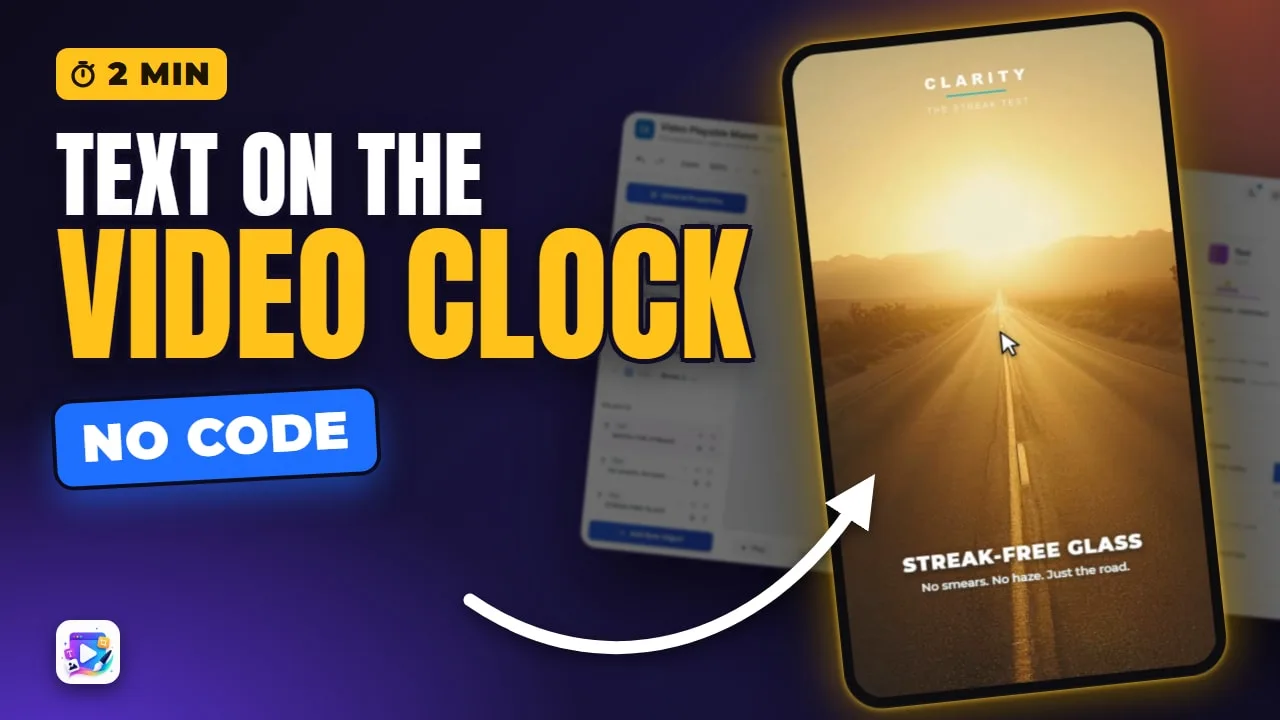
In this video
- A caption on the video clock: Time frame
- Leaving before a break
- Checking it on the timebar
- The end screen: a page after the video
- What goes on it - and the click-through button
- Three mistakes to avoid
About this video
In the Video Playable Maker, any text can appear for a slice of the video - a caption on the first beat, a claim on the last - and the end screen takes over when the video ends, with the button that opens the store. This tutorial adds a caption to the Glass Cleaner template, times it to leave before the first break, and rewrites the end screen.
Playable Ads Maker - build playable ads and end cards, export to 13 ad networks.
Transcript
The claim fades in on the last beat - and the moment the video ends, the end screen takes over, with one button. Words on the video's clock, and a screen for after it.
In the next few minutes: text that appears on the video's clock, how to check it, and the end screen - what it's for, and what goes on it.
Add New Object, Text. The first beat's caption: watch the streaks. Up at the top.
Read the full transcriptShow less
Appearance: Time frame. From half a second to three point two - so it leaves before the first break, at three point six.
Check it on the timebar. At zero: nothing. At two seconds: the caption. At four: gone.
The template's closing claim works the same way: eleven point three seconds, to the end.
When the video ends, the end screen takes over. It's a page of its own - select it here.
Three things belong on it: what they get, one line of detail, and one button. That button is the click-through to the store.
Change the words to fit your offer. The layout stays put.
Three mistakes to avoid. One: text that flashes by. Under a second and a half, nobody reads it.
Two: a caption running into a break. The video stops there, and so does the caption - time it to leave first.
Three: an end screen that says too much. One offer, one line, one button.
That's timed text and the end screen. See you in the next video!