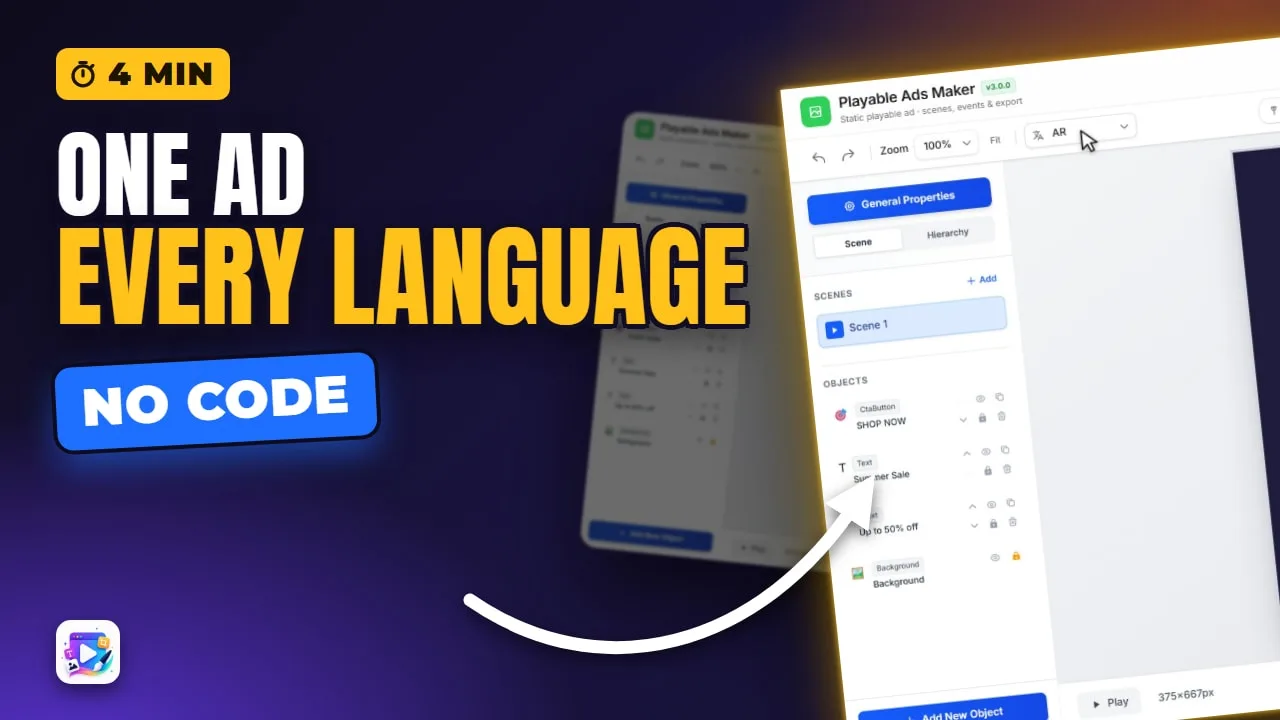
In this video
- The Localization panel: one row per text, one column per language
- Empty cells fall back to English
- Previewing any language on the canvas
- Right-to-left: what flips in Arabic, and what deliberately does not
- Export CSV and the blank 17-language template for translators
- Import CSV - and the empty-cell trap
- Checking long languages like German before you ship
- Three mistakes to avoid
About this video
One playable ad can speak seventeen languages. This tutorial adds French and Arabic to a project, types the translations, imports German from a translator's spreadsheet, and checks every language on the canvas - including right-to-left Arabic, where aligned text moves to the reading side, and German, where a single long word breaks the layout. What the export does with those languages is covered in the Export tutorial.
Playable Ads Maker - build playable ads and end cards, export to 13 ad networks.
Transcript
One ad, the same screen, in English, French, Arabic and German. Nothing was rebuilt - the words changed, and the Arabic headline moved to the side an Arabic reader starts from.
In the next few minutes you'll add languages, fill them in by hand and from a spreadsheet, and check each one on the canvas before you ship.
The Export video covered what happens at export: one file that picks the viewer's language, one file per language, or English only. This one is about getting the words in.
Read the full transcriptShow less
Open Localization from the top bar. Every text and every button in the project is a row, whatever scene it's on.
Add a language, and it becomes a column. I'll add French, and Arabic.
Type each translation into its cell. A cell you leave empty shows the English in grey - and that's exactly what the ad will show in that language: the English, not a blank.
Close the panel and pick a language in the top bar to see the canvas in it. French first.
Now Arabic. The headline was aligned left - and in Arabic it moves to the right edge, because that's where an Arabic reader starts. Centred text stays centred, and nothing else moves.
Most translations come from a translator, not from you. Export CSV gives them a spreadsheet: a row per text, with its object ID, the English, and a column for every language you have.
Template does the same with all seventeen languages as empty columns, for when you're asking for everything at once.
When it comes back, Import CSV. This file has a German column the project didn't have - so German is switched on for you, filled in.
And this is why you check every language on the canvas. Sommerschlussverkauf is one word, it doesn't fit, and it runs straight into the line underneath. Shorten it, or give the box more room.
Three mistakes to avoid. One: an empty cell in an imported file doesn't mean skip - it clears that translation. Send back only the columns you mean to change.
Two: checking only the language you typed. German often runs a third longer than English, and it's the one that breaks the layout.
Three: fixing right-to-left by moving things. Only alignment flips, on purpose. If a design needs mirroring, that's a layout decision you make yourself.
That's localization. Next up, kinetic text. See you in the next video!