In this video
- Adding an image and uploading your own picture
- Object Fit: Contain, Cover, Fill
- Picture Position: which part Cover keeps
- Tint and border
- Rounded corners, blur and darken
- Opacity, rotation, blend mode and a drop shadow
- Change Image keeps the frame
- Three mistakes to avoid
About this video
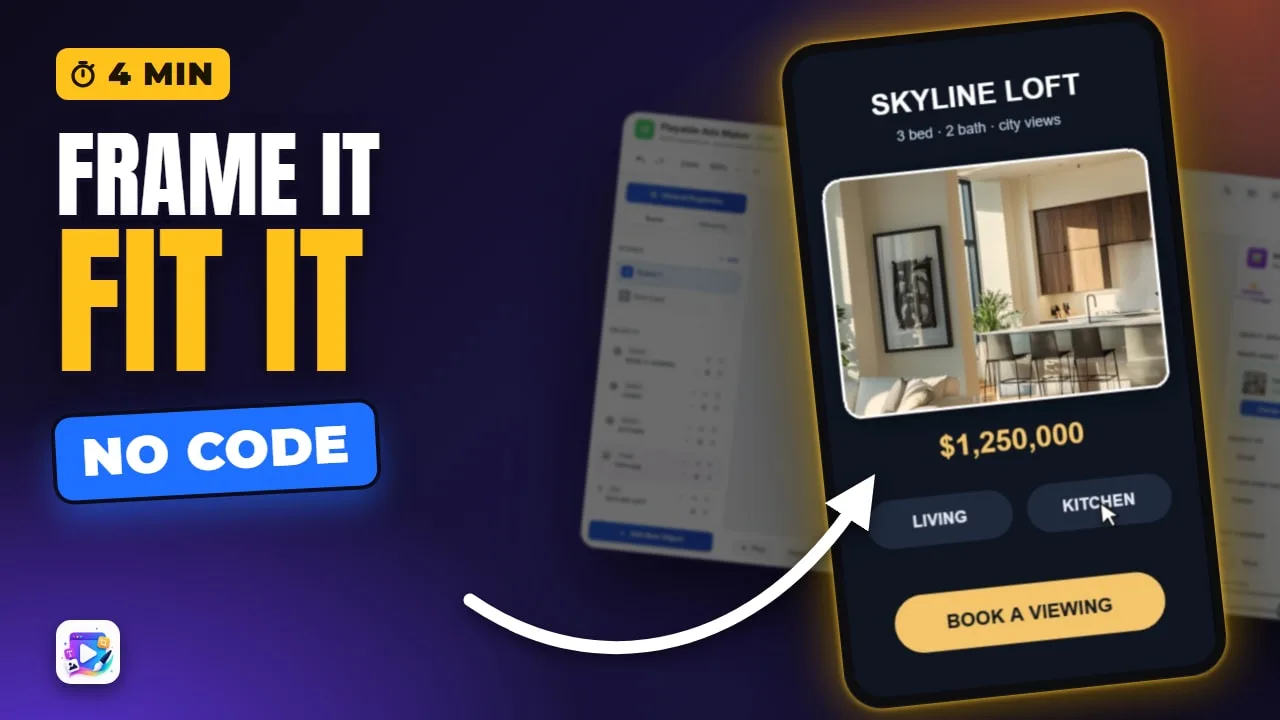
The Image object places a picture in a playable ad and frames it: Object Fit decides how it meets its box (Contain shows all of it, Cover fills and crops, Fill stretches), Picture Position picks which part Cover keeps, and tint, border, rounded corners, blur, darken, blend modes and FX finish it. This tutorial builds a property listing from one photo and two buttons that swap the room.
Playable Ads Maker - build playable ads and end cards, export to 13 ad networks.
Transcript
One photo, framed, warmed up and shadowed - and a tap swaps the room. No image editor.
That's the image object. In the next few minutes: adding a picture, how it fits its box, where it sits, tint and border, corners, and effects.
Add New Object, Image. It arrives as an empty box. Click it to choose a picture, or upload your own.
Read the full transcriptShow less
The first picture sizes the box to fit, and centres it. I'll put it in the card.
Object Fit decides how the picture meets its box. Contain shows all of it, with empty bands. Cover fills the box and crops the rest. Fill stretches it - almost never what you want.
With Cover, Picture Position picks which part you keep. Top keeps the windows. Bottom keeps the sofa and the floor. Back to the centre.
Tint colours the picture - white leaves it untouched, a pale warm tone makes it golden hour. Then a border, three pixels, in white.
Border Radius rounds the corners. And Blur and Darken are for a photo behind text - reset them when you don't need them.
Below: opacity, rotation, scale and blend mode. And in the FX tab, a drop shadow lifts the card off the page.
Change Image keeps your box. The new picture drops into the same frame, with the same fit.
The two buttons use the Swap Image action - the Events video covers it. Press Play.
Living room. Kitchen. The frame, the tint and the shadow stay; only the picture changes.
Three mistakes to avoid. One: a huge photo. The picture ships inside the ad - a thousand pixels is plenty, and compress it first.
Two: Fill on a photo. It stretches to the box. Use Cover, and choose the position.
Three: corners on a cut-out. A transparent PNG has no corners to round - put a shape behind it instead.
That's the image object. See you in the next video!