In this video
- Create a workspace from your account page
- Invite a teammate - and what a seat is
- Share a project with the workspace
- See who is editing right now
- Send for Review: the web preview and the review link
- What the client sees: play, comment, approve
- Three mistakes to avoid
About this video
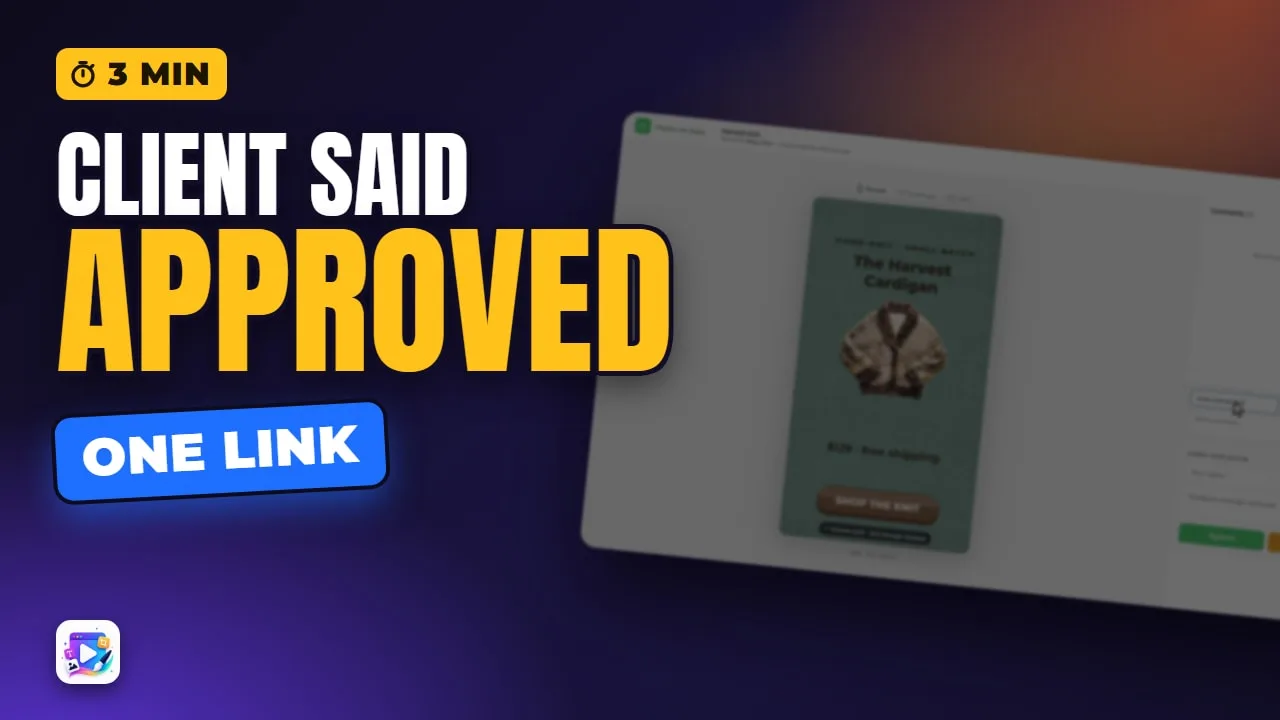
A workspace gives your team one place for shared projects, shows who is editing a project right now, and sends clients a review link. The client needs no account: they play the real ad, leave comments, and approve it or ask for changes - and the status shows on your account page.
Playable Ads Maker - build playable ads and end cards, export to 13 ad networks.
Transcript
Your teammate has edits, your client has notes, and files are flying back and forth by email. A workspace puts it all in one place: who's on the team, who's working right now, and what the client said.
In the next few minutes: creating a workspace, inviting a teammate, seeing who's online, and a review link for your client.
On your account page, under My Workspace, press Create My Workspace. Keep the suggested name, or type your own, and create it.
Read the full transcriptShow less
Open Members. Each teammate uses one seat, and seats are bought right here. Type their email, keep Editor, and invite.
Your teammate sees the invitation on their own account page. Accept, and they're in.
Back on your account, share the project with the workspace from its row. Everyone in it can now open the project.
Open the project while your teammate has it open, and their initial appears at the top, with co-editing beside it - so you both know before anyone saves over the other.
For the client, press Send for Review on the project's row. Add their email and a short message, and open it in the editor.
A reviewer needs something to play. Export a web preview from the panel, keeping Save project to cloud ticked, and close the export window.
Now press Send to Reviewers. The review link is right here - copy it into any chat, or let the email do the work.
The client opens the link - no account needed. They play the real ad, leave comments, and approve it, or ask for changes.
And back on your account page, the project now says Approved.
Three mistakes to avoid. One: sharing one login. Invite each person - everyone gets their own account.
Two: inviting a client into your workspace. A client needs no account at all - send them the review link.
Three: ignoring co-editing. If a teammate's initial is at the top, agree who saves first - or one of you will have to choose which version to keep.
That's workspaces and client review. See you in the next video!