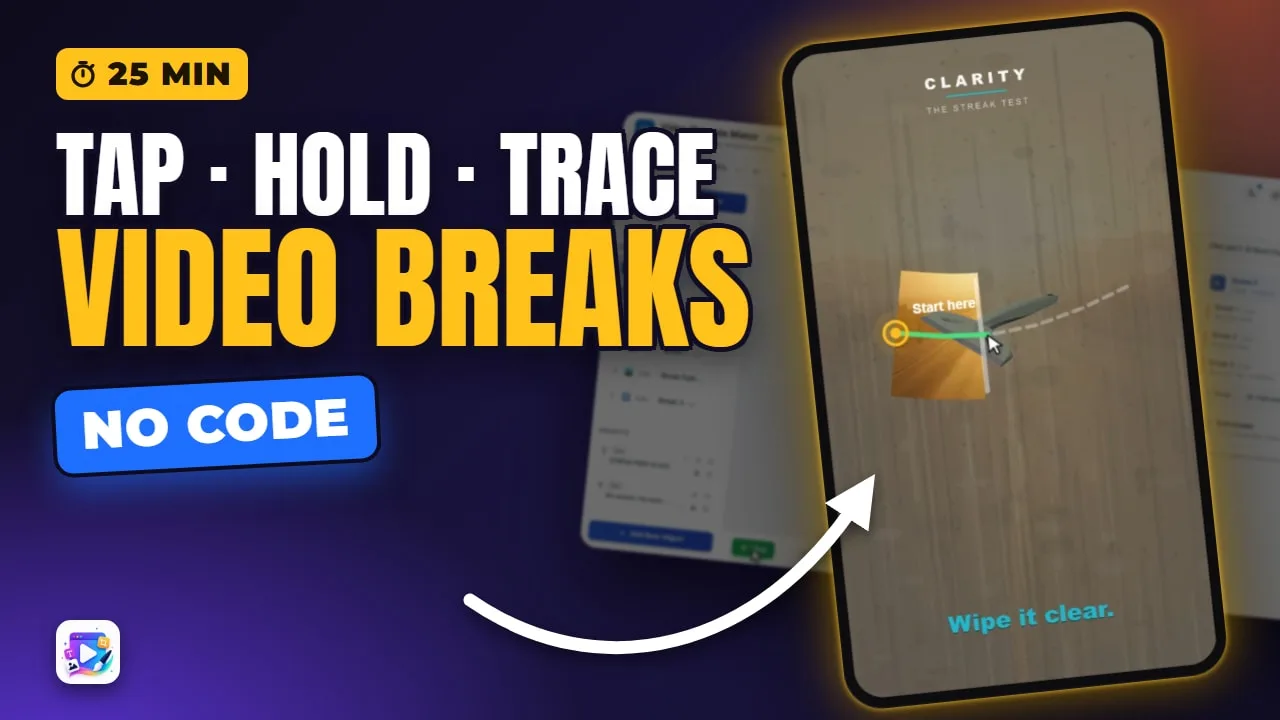
In this video
- What a break is, and how a video project is built: the video, its breaks, the end screen
- Adding a break from the list and at the playhead on the timeline — and why two can never share a frame
- Time, to the millisecond, and why the earliest break is the one you test first
- Click / Tap, Double Tap and Hold, each tested in Play, with when to use which
- Hold duration, the hint text, and the hold that shows nothing at all
- Hold a specific spot: X, Y, W, H, Shape, dragging and sizing it on the canvas
- Look and feedback: colour, ring label, how far it grows, pulse, the pointing hand, the flash
- Hint and label colour for bright footage
- Overlay objects — text, buttons, images and audio — and every field on each
- All five button actions, link parameters, and the button that takes over a break
- Why a button on a hold break can never be tapped
- Retiming on the timeline: snapping, Shift for hundredths, moving past other breaks
- Path breaks: ready-made shapes, drawing a custom route, what rides the path, the demonstrating hand
- Path follow rules: show path, hint, must complete, finger tolerance, fixed start — each tested
- Video sync to path: footage that moves at the speed of the finger
- Portrait and landscape, mistakes to avoid, and which gesture suits which ad
About this video
A video playable is a video ad that stops and asks for something before it carries on, and the break is the thing that stops it. Breaks are the heart of the Video Playable Maker, so this is the complete version: every gesture and every setting on the Break panel, changed on camera and tested in the editor’s own Play, with a reason you would reach for each. It builds a tap, a double tap and a hold on real footage, gives the hold a spot, a pointing hand and a filling ring, puts a caption, a button, an image and a sound on the pause, walks all five button actions, retimes the break on the timeline, then deletes the template’s own wipe and rebuilds it as a path break — drawing the route, choosing what rides it, and syncing the footage to the finger. It ends on landscape, the mistakes that catch people, and which gesture suits which ad. Every setting shown is on every plan; you only need to be signed in.
Exports for Unity, AppLovin, Google, IronSource, Mintegral, Meta (Facebook), Moloco, TikTok, Liftoff, Vungle, Chartboost, InMobi and Pangle — one self-contained HTML5 file each.
Transcript
Captions in 18 languages on YouTube
This video ad just stopped and waited for me. I wiped the glass with my finger, and the footage only moved as fast as I did.
Then it stopped again, and waited for a choice. Those pauses are video breaks, and they are the heart of the Video Playable Maker. In this video we build every kind, change every setting on camera, and say what each one is for.
A break is three things: a moment where the video freezes, a gesture that gets the viewer past it, and whatever you put on screen while it waits.
Read the full transcriptShow less
Here is the same ad in the editor. A video project is a video, the breaks along its clock, and an end screen after it. The footage plays, a break stops it, the viewer answers, and it plays on.
The Video list on the left shows every break in time order, with the gesture it waits for. This one waits for a traced path, and this one for a tap.
Click a break, and the canvas jumps to the exact frame it freezes on, with everything that break puts on screen. So you always judge a break against its real picture.
Every setting in this video is on every plan, Free included. On the live site you only need to be signed in.
To add a break, press Break. It lands halfway through the video, and its settings open straight away.
The add buttons live on the list, not on a break's own panel, so press Escape to get back to them.
The timeline adds a break exactly where you want it. Park the playhead on a frame, press Break, and the new break sits on that frame.
Press it again without moving, and the editor refuses. Two breaks can never share a frame, because the second one could never be reached.
And anything you add, you can remove. Hover the break in the list, and press the bin.
Time is the frame a break freezes on, to the millisecond. It can never run past your footage: type 99, and it snaps back to 13, the length of this spot.
Put a break on the frame where the question is on screen. I will use two seconds, because Play always starts from the top, so the earliest break is the first one you meet, and testing stays quick.
Resume video when is the gesture itself: Click or Tap, Double Tap, or Hold.
A tap is the default. Press Play, the video stops, one tap anywhere, and it carries on. Use it for continue and next: anything the viewer should never have to think about.
Double Tap waits for two taps inside half a second.
Tick Show resume hint text, and the break tells the viewer what to do.
Now one tap does nothing, and two taps play it on. Save a double tap for a moment the viewer should mean: a like, a confirm, a reveal they could otherwise set off by accident.
Hold asks them to press and keep pressing, and it brings a Hold duration with it, from 400 ms up to 3 seconds.
At three seconds the ring fills slowly. Let go halfway, and it empties straight back to the start. Hold on to the end, and the video plays on. That is a commitment: charge it, brew it, fill it up.
At 400 ms, a hold is barely longer than a tap: enough to ignore a stray touch, not enough to ask for patience.
Now untick the hint. A hold with no hint and no spot draws nothing at all. The press still works, but the viewer is holding a screen that shows them nothing happening.
So a hold break always gets one of two things: the hint ticked, or a spot to press. Which is the next setting.
Hold a specific spot gives the break a target, and while the break is selected, that target is drawn right on the canvas.
X and Y are percentages of the canvas, measured to the middle of the spot. Watch it move as I type.
W and H size it the same way, and Shape turns the rounded box into a circle.
Or skip the numbers. Drag the spot where you want it, pull its corner to size it, and the fields follow.
In Play the spot is outlined and pulsing. A long press anywhere else does nothing. Press the spot itself, and the ring fills right on it. Use a spot when the footage has one thing to press: a button, a lever, a lid.
The spot is kept per orientation, so a landscape layout has a spot of its own. We will look at landscape near the end.
Look and feedback styles the ring and the spot. Colour paints both: here, a brand orange.
Ring label is the word under the ring, up to 12 characters. It says HOLD until you change it, so use your own verb.
This slider is how far the spot swells while it is held, up to 140%.
Show a hand pressing the spot puts a pointing hand on it, from three hand images.
Here it all is together. The hand presses on a loop until the viewer touches, then gets out of the way. The spot swells in orange, the label reads PRESS, and the moment the hold completes, it flashes.
Pulse and Flash are both on by default. Switch them off for a quieter break: no breathing before the press, and no flash after it.
Hint and label colour sets all of that small print at once: the label's pill, the double tap hint, and a path's guide line. White suits dark footage like this. Over a bright frame, set a dark ink, and the pill flips to light so it still reads.
Overlay objects are what you put on screen while the video waits. They appear the moment it pauses, and they are gone the moment it plays on.
Buttons belong on a tap break, and you will see why in a minute, so I will switch this one back to Click or Tap first.
Add Text, and a caption lands in the middle of the frame.
Type your line, then give it a colour, a size and a weight. Tell the viewer what this pause is asking for.
Align sets it left, centre or right inside its box. And to place it, drag it on the canvas.
Add Button, and it arrives reading Resume.
It takes a label, a font size, a background and a text colour, and a corner radius, from square up to a full pill.
One thing changes the moment a break has a button: the button becomes the way out. Tapping the frame no longer resumes, and tapping the button does. That is how a break asks a real question.
Action decides what the button does, and there are five.
Jump to time sends the video to a second you choose. Back to zero makes a watch again button. Jump forward past a break, and that break still stops the viewer where they land.
Open the CTA link sends the viewer to your store page, the one you set in Export, and leaves the video paused behind them. The last two do both: resume or jump, and open the link.
Inside the editor there is no store to open, so those three do nothing when you test them here. Check them in a web preview build.
Set link parameter records a choice on the click-through. Type pack = amber, and the link carries pack=amber, so the page opens on what they picked.
Set replaces an earlier choice. Add builds a list. And Toggle adds it on one tap and takes it away on the next, for a screen where the viewer picks several.
Add Image puts a picture on the pause: the product, a price, a badge. Choose one from the library, or upload your own.
Every object has a bin, to take it off the break again.
Add Audio plays a sound while the break waits, with Autoplay, Loop, and a volume of its own, and it stops when the video plays on. That one you hear, rather than see.
And here is the one that catches everybody. Switch this break to Hold, and the panel warns you in amber: a hold covers the whole frame to catch the press, so no button on it can ever be tapped.
In Play, the button is dead. Buttons belong on a tap break.
To retime a break, drag its handle along the ruler. It snaps to tenths of a second.
Hold Shift for fine control, to the hundredth.
Drag it into another break, and it stops short. Two breaks never share a frame.
To move a break past its neighbours, type its new Time. I send this one to 10.5 seconds, after both of the ad's own breaks, and the list renumbers itself in time order.
Which leaves the fourth gesture, and the one this ad is built on: the path break. The viewer traces a route with a finger, and the footage can follow them.
To show every part of it, I will delete this ad's own wipe, and build it again from nothing.
Press Path break, and set its Time to 3.6, the frame where the squeegee meets the glass. It arrives with a pointing hand on a path.
Path offers ready-made shapes: an ellipse, a rectangle, and an infinity loop. Good for circling a product, or a figure of eight.
Path Border sizes a ready-made shape as a share of the canvas.
For anything real, choose Custom and draw your own route. Add point at center gives you one more point to work with.
Then drag each point to where the finger should go. Point one is the start, and the route runs through the points in order.
Drag inside the route's box to move the whole route at once. Right-click a point to delete it, or use its cross in the panel.
Closed loop joins the last point back to the first, for a route that goes all the way round. A wipe is a line, so it stays off.
Enable path animation is the path itself. Switch it off, and there is nothing to trace, so the rest of the panel steps aside. Switch it back on, and your route is still there.
What rides the path is the thing the finger drags. The pointer hand is the default.
Custom image gives the pointer a picture of your own: a sponge, a spray bottle, a key.
Or add an image to the break from its row in the list, pick it here, and the viewer drags that image along the route instead.
Duration, Repeat, Easing, Yoyo, Reverse and Auto Rotate all drive the demonstration: the hand that walks the route before anyone touches it.
At four seconds, it walks slowly enough to follow.
Repeat zero walks it once, and then it stops. Minus one, the default, keeps it going until the viewer touches.
Easing shapes its speed along the way, Yoyo walks it back instead of jumping to the start, Reverse sends it the other way, and Auto Rotate turns the rider to face the route, which shows on an arrow far more than on a hand.
Path follow is the part that judges the finger.
Show path in playable draws the route as a dotted guide. Switch it off, and the hand still demonstrates, but the line is gone. That suits a gesture you want found, rather than followed.
Show trace the path hint text adds a small label at the start of the route.
Must complete is how much of the route the finger has to cover, from 70% to all of it, and the diamond on the canvas marks that finish line.
At 100%, a trace that stops at 80 is not enough. At 70, the very same trace is. Forgiving for a casual ad, strict when the gesture is the point.
Finger tolerance is how far the finger may stray from the line, from 20 to 100 pixels, and the band on the canvas shows it.
At 20, a trace just below the line fails. At 100, the same trace passes. Keep it wide for thumbs on a small phone.
Fixed start point makes the finger begin at point one, and in Play the start marker turns amber to say so. Starting from the far end does nothing; from the start, it works. Leave it off, and they can join the route anywhere.
Now switch on the last rule, and every point in the list gets a video time. The first is the pause itself. I give the last one 5.9, when the glass is clear, and every point between fills in on its own.
Video sync to path is the one that sells it. Give each point a video time, and the footage scrubs between them as they drag. That is the glass clearing at exactly the speed of my finger.
Stop, and the footage stops with me. Finish the route, and the ad plays on from where the finger left it.
Press Play one last time, and take it from the top: my rebuilt wipe, the pack choice, the break I added with its caption and its button, and on to the end screen.
One more thing: orientation. Portrait or landscape is chosen when you set up a video project, and every break keeps its own layout for each: its spot, its route, its objects, and its video times.
This is the same ad on a landscape screen. The footage is letterboxed, and the wipe follows a landscape route of its own. Build the orientation you ship, and test it the way it will be seen.
Before you ship, check five things. A button on a hold break can never be tapped. A button on a path break switches the drag off. A hold with no spot and no hint shows nothing. White hints vanish over bright footage. And a route at 100% with a 20 px band will beat most thumbs.
And which gesture, when. A tap to continue, or to choose. A double tap for a moment they should mean. A hold for anything that charges, brews or fills. And a traced path for anything you wipe, pour, spread or draw.
For a finished example, remix Glass Cleaner: a drag break and a tap break over a 13-second spot. Next up, the Export window. See you in the next video!
Build your first one free, at playableadsmaker.com.