In this video
- Adding a shape
- Shape Type: rectangle, circle, ellipse, triangle, star
- Star points, fill colour, stroke colour and width
- Corner radius - and why a big number makes a pill
- Surface: Flat, 3D Lit and its depth, Glass
- A tappable shape button, played
- Three mistakes to avoid
About this video
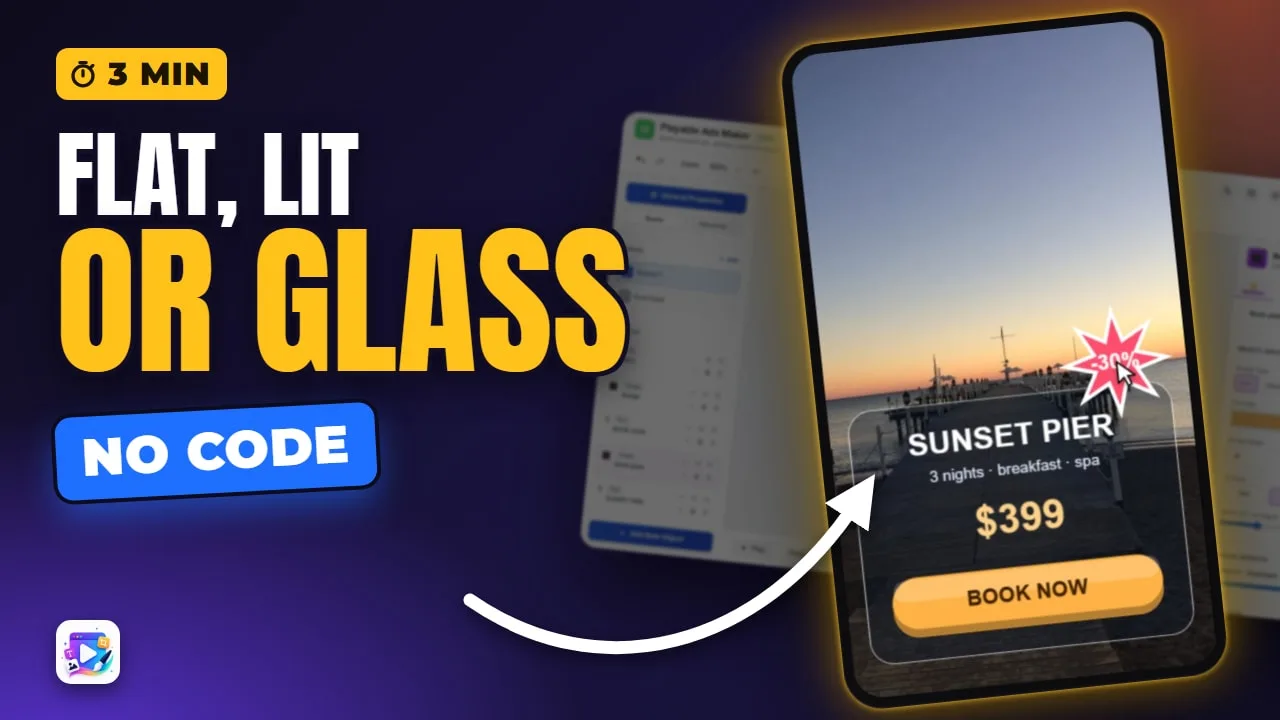
The Shape object draws rectangles, circles, ellipses, triangles and stars inside a playable ad - no image files, sharp at any size, a few bytes each. Its Surface setting turns a flat colour into a pressable 3D button (a lip, a gloss and an edge, with adjustable depth) or a glass panel that lets a photo show through while keeping text readable. This tutorial builds a resort offer over a sunset photo from three shapes.
Playable Ads Maker - build playable ads and end cards, export to 13 ad networks.
Transcript
A glass panel over the photo, a button you want to press, a sale badge. Every one of them is a shape - no image files.
That's the shape object. In the next few minutes: the five outlines, colour and stroke, corners, and the three surfaces - flat, lit and glass.
Add New Object, Shape. It arrives as a small square. I'll make it wider, so you can see the difference in a moment.
Read the full transcriptShow less
Shape Type picks the outline. Circle, ellipse, triangle, star. A circle stays round whatever the box - ellipse fills it.
A star has Points. Eight makes a sale burst.
Fill Color paints it. Stroke Color and Stroke Width draw an outline - zero means none.
I'll put the badge behind its label, and add two plain rectangles: a panel behind the text, and a plate behind the button.
Corner Radius rounds a rectangle. It stops at half the shorter side, so a big number makes a pill.
Now Surface. Flat is one colour. 3D Lit adds a darker lip underneath, a soft gloss and an edge - a button you want to press.
Depth sets the lip, as a share of the height. Deep for a chunky game button, shallow for a subtle one.
Glass is for a panel over a photo: a see-through face and a light rim. The photo shows through, and the text is readable again.
A shape takes everything else too: opacity, blend mode, the FX tab, animations and events.
The plate carries the tap. Press Play.
Book now, and the End Card - whose button is the same lit shape.
Three mistakes to avoid. One: a picture for a plain button. A shape costs a few bytes and stays sharp at any size.
Two: flat text straight on a busy photo. Put a glass panel under it.
Three: a circle in a wide box, expecting an oval. Circle uses the shorter side - pick Ellipse.
That's the shape object. See you in the next video!