In this video
- Placing the Quiz and Finder - it arrives with no answer buttons
- Questions, answers and Votes For
- Results: name, description and picture
- Binding your own buttons so they show the answers
- Answering with the Select Option action: current question or a named one
- Votes or points, shuffle and the pause after an answer
- The match on the End Card
- Three mistakes to avoid
About this video
The Quiz and Finder is an interactive module: a few quick questions where every answer votes for a result, and the viewer is matched to the product that fits. It draws no answer buttons of its own - you place ordinary buttons, bind them so each one shows the answer in its position, and wire them with the Select Option action. This tutorial builds a running-shoe finder from scratch: questions and votes, results with pictures, bound and wired buttons, and the match carried to the End Card and the click-through link. Placing a module in your own project is on the Agency plan.
Playable Ads Maker - build playable ads and end cards, export to 13 ad networks.
Transcript
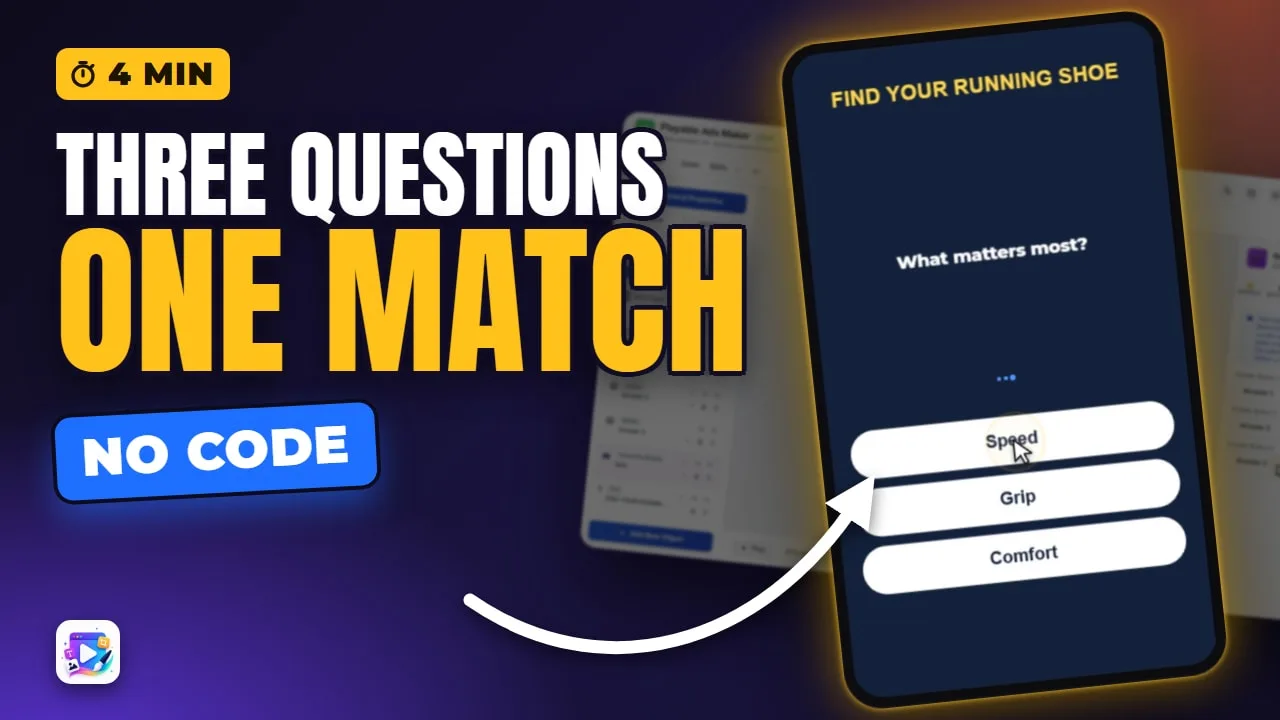
Three quick taps, and it tells you which shoe is yours. No right answers and no score - just a match.
That's the Quiz and Finder. In the next few minutes you'll build one: the questions, how every answer votes, your own answer buttons, and the match on the End Card.
Add New Object, Quiz and Finder - on the real site, placing a module is the Agency plan. It arrives with its question and nothing else. The answers are your buttons.
Read the full transcriptShow less
It isn't a test. Every answer votes for a result, and the result with the most votes is the viewer's match.
Open Questions. There's one tab per question. The question is one short line, and the answers are one line too, separated by commas.
Votes For is the heart of it: one result number per answer, in the same order. Road votes for result one, trail for two, treadmill for three.
The other two questions are written the same way, and the three results have a name, a line and a picture each.
Now the buttons. Under Buttons, bind Answer Button one, two and three. Each one now reads the answer in its position, and it changes with every question.
If a question has fewer answers, the extra button hides itself. And when the match is up, they all step aside.
Showing an answer isn't choosing it. Select the first button, open Events, choose Tap, and add Select Option.
Pick the quiz, then Current question, and Answer one. That's the first answer as shown, whatever the question. Buttons two and three are wired the same way.
Or pick a question by name, for a button that belongs to one question only - it does nothing while any other is up.
Scoring decides how answers add up. Votes is a product finder - most picked wins. Points turns each answer into a score and picks a band, for a level test or a risk profile.
Under Behaviour: shuffle the answers so the first one isn't favoured - the bound buttons follow the shuffle - and set the pause after each answer.
Go to End Card is on, so after a moment on the match, the ad moves on. The End Card prints it with the result token.
Press Play, and answer.
Three taps. The buttons change with each question, the match comes up with its picture, and the End Card arrives with the same name.
And the match, plus every answer, rides the click-through link - so the product page can open on the right shoe. The Deep Link video covers that.
Three mistakes to avoid. One: typing the answers onto the buttons yourself. Bind them instead - with shuffle on, a typed label points at the wrong answer.
Two: too many questions. Three is the sweet spot for an ad - six or more, and people drop off before the match.
Three: switching scoring without rewriting the numbers. In Votes they're result numbers; in Points they're scores - the same boxes mean something else.
That's the Quiz and Finder. See you in the next video!