In this video
- Placing the Configurator - it arrives with no buttons
- Option groups and one photo per option
- Swap the whole picture, add a layer, tint, or record only
- Wiring your own buttons with the Select Option action
- Unavailable options
- A running price: a base plus a delta per option
- Binding your own spec and price texts
- Finish When All Set, and the End Card that prints the build
- Three mistakes to avoid
About this video
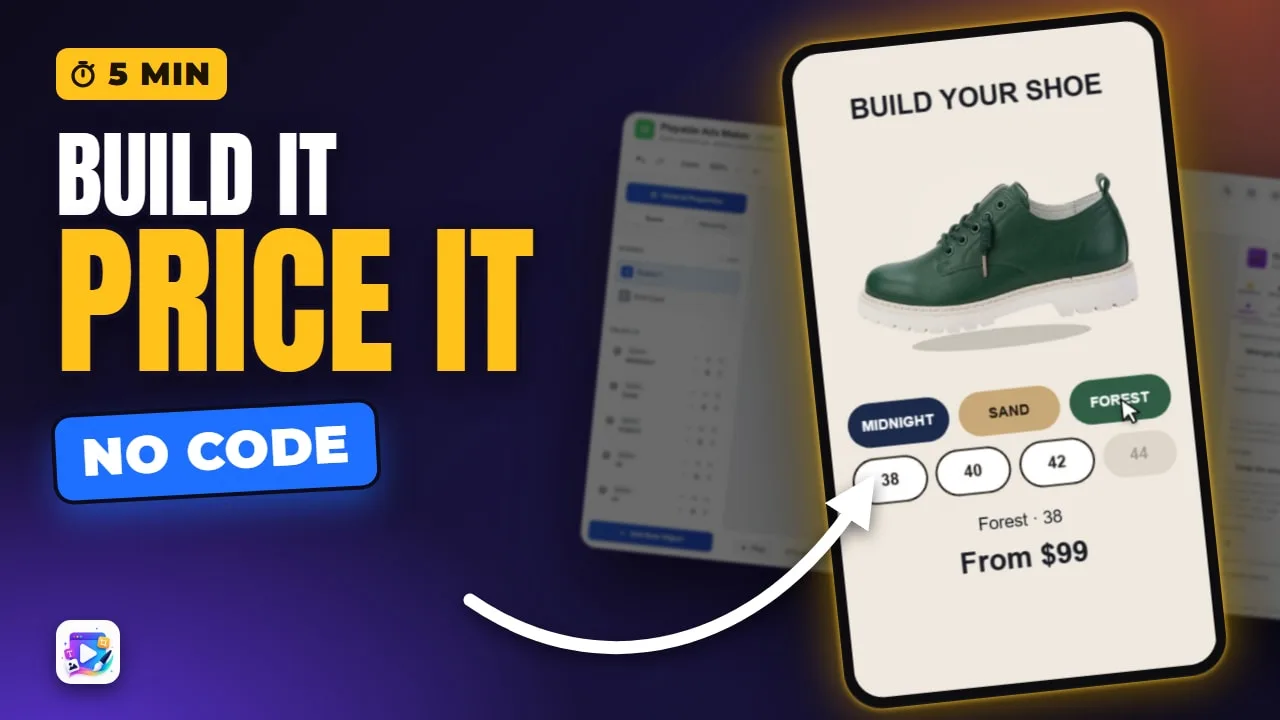
The Configurator is an interactive module that shows your product and changes it as the viewer chooses. It draws no buttons of its own: you place ordinary buttons, style them however you like, and wire each one with the Select Option action, whose lists hold exactly the groups and options you set up. This tutorial builds a shoe configurator from scratch - a real photo per colourway that swaps on tap, a size group with a sold-out size, a running price, spec and price texts, and an End Card that prints the finished build. Placing a module in your own project is on the Agency plan.
Playable Ads Maker - build playable ads and end cards, export to 13 ad networks.
Transcript
Tap a colour, and the product becomes that shoe - a real photo of it. Pick a size, the price keeps up, and the ad ends on exactly what you built.
That's the Configurator. In the next few minutes you'll set it up from scratch: the photos, the buttons that drive it, the price, and the End Card.
Add New Object, Configurator. On the real site, placing a module in your own project is the Agency plan. And notice what arrives: just the product. No buttons.
Read the full transcriptShow less
That's on purpose. The buttons are yours - ordinary buttons you place, style and animate like anything else. These seven are already on the canvas, and I've sized the configurator to sit above them.
Everything that makes it yours is under Groups. Group one: call it Colour, and give it three options, separated by commas.
Now the pictures. Option Images takes one photo per option, in the same order: Midnight, Sand, Forest.
Set Changes to Swap the whole picture, and the product becomes the first photo. A real photo per colour is almost always the best-looking choice.
The others: Add a layer over it, for a part - wheels on a car. Tint, for one plain product. And Record only, for a choice you don't show.
Group two is Size: thirty-eight, forty, forty-two, forty-four. No pictures, so it's recorded. Forty-four is sold out, so Unavailable Options takes its position: four.
Now connect a button. Select Sand, open Events, choose Tap, and add the action Select Option.
Pick the configurator, then the group and the option. These lists are exactly what the configurator offers - you can't wire a button to a choice it doesn't have.
The other six are wired the same way. A sold-out option is listed as unavailable, and a tap on it does nothing, so style its button to look it.
Pricing → running price, base 89 · each group's Price Deltas, e.g. 0,0,10
Price Text Object → "From {price}" · Spec Text Object → "{1} · {2}"
Finish When All Set sends the viewer to the End Card once every group has been chosen. It's off by default, and that's usually right - leave it off, and the build stays on screen until they tap your button. For this demo I'll switch it on.
The End Card reads the same tokens: one, two and price. The configurator publishes them as it goes, so any text on a later scene can print the build.
Press Play and build one.
Sand, then Forest - the photo swaps, and it's ten dollars more. Forty-four won't take a tap. Size forty, and the End Card arrives with the build and the price on it.
One more: every choice also rides the click-through link, so the product page can open on the same shoe. That's the Deep Link video.
Three mistakes to avoid. One: Unavailable Options counts from one, but Starts On counts from zero. Starts On two is the third option.
Two: a button remembers a position, not a name. Reorder the options, and every button picks something else - check them after any reorder.
Three: finishing too early. With Finish When All Set on, a viewer who taps around to explore is taken away before they've decided.
That's the Configurator. Next up, the quiz and product finder - it works the same way. See you in the next video!