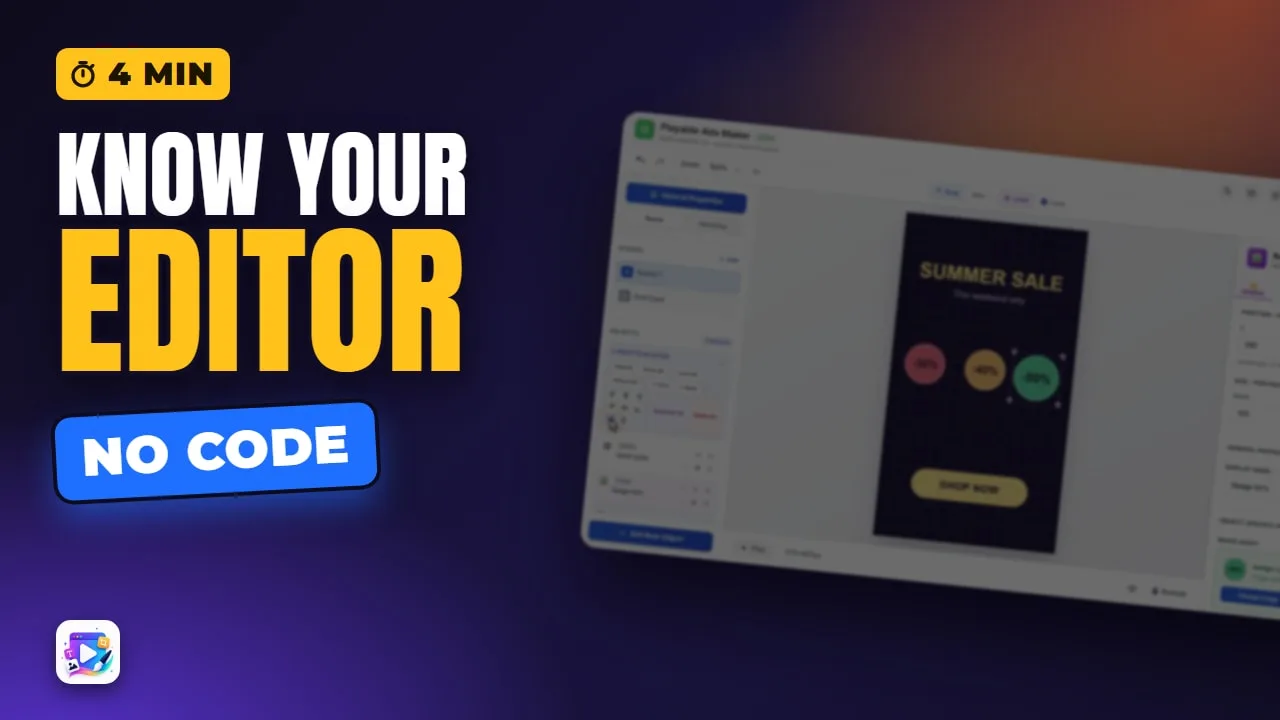
In this video
- The header and the top bar
- Zoom, Fit and the snap grid
- Scenes and the object list: order, hide, lock, duplicate, delete
- The canvas: select, move, resize, deselect
- The properties tabs and the Play bar
- Multi-select, align and distribute
- Keyboard shortcuts: nudge, duplicate, copy, paste, delete, undo, redo
- Three mistakes to avoid
About this video
A tour of the Playable Ads Maker editor, panel by panel: the header with Localization, Variables and Export; the top bar with undo, zoom and the snap grid; the scene and object lists; selecting, moving and resizing on the canvas; the General, Animate, FX and Events tabs; Play and the orientation switch; multi-select with align and distribute; and the keyboard shortcuts that make building faster.
Playable Ads Maker - build playable ads and end cards, export to 13 ad networks.
Transcript
Three badges, all over the place. Select them, line up the tops, space them evenly - and one key takes it all back.
That's the editor, panel by panel: the header, the object list, the canvas, the properties, Play - and the shortcuts that save you an hour.
Across the top: Localization and Variables, your save options, the light or dark theme, the build check - and Export.
Read the full transcriptShow less
Under it: undo and redo, and the zoom - Fit puts the whole canvas in view. Then the snap grid: switch it on, pick a size, and show the lines.
On the left, your scenes. Add one here; double-click a scene to rename it.
Below, every object in the scene. The top row is in front. Each row moves up or down, hides, locks, duplicates or deletes - and a right click opens the same menu.
On the canvas, click to select, drag to move, and pull a corner to resize. Clicking the background clears the selection - so does Escape.
The right panel is whatever you selected: General for its settings, Animate for motion, FX for effects, and Events for what it does.
Under the canvas: Play runs the scene the way the ad will, the volume, and the orientation switch - the portrait and landscape video covers that one.
Shift-click to select several - in the list, or right on the canvas. A bar appears: hide, lock, bring to front, and the align buttons.
Align top edges lines them up. Distribute horizontally spaces them evenly - that one needs three or more.
The arrow keys nudge five pixels, one with Shift. Control D duplicates. Control C and V copy and paste. Delete removes it.
And Control Z undoes, fifty steps back. Control Y - or Control Shift Z - brings it back.
Three mistakes to avoid. One: aligning a locked object. Locked objects are skipped - unlock them first.
Two: distributing two objects. Distribute needs three; with two, it does nothing.
Three: fighting the snap. Snap pulls every drag onto the grid - switch it off for fine placement, or nudge with Shift and the arrows.
That's the editor. See you in the next video!