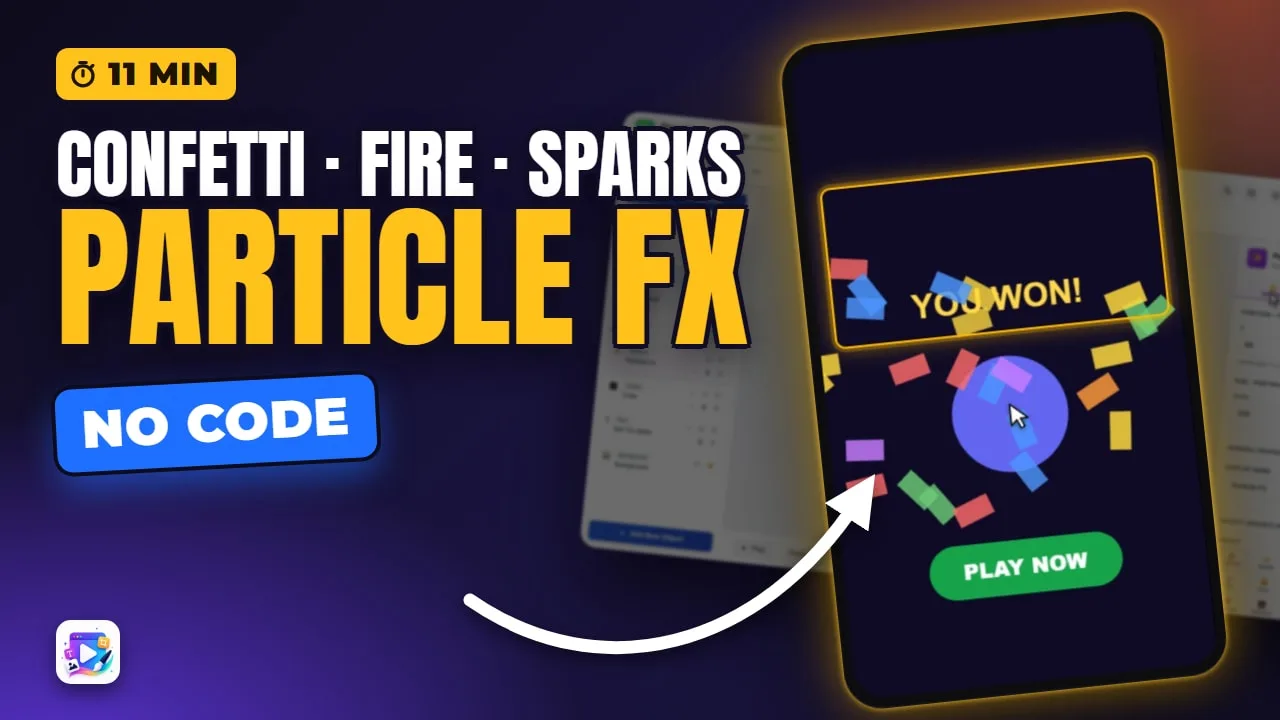
In this video
- Add a Particle FX and start from one of the 29 presets
- Emitter: Point, Rect, Circle, Cone, Edge and Ring, emission rate, max particles, burst mode, start delay and simulation space
- Emission Curve: Constant, Sine, Ramp Up, Ramp Down and Burst Wave, plus Loop, Duration, Stop action and Prewarm
- Particle shape and colour: Circle, Square, Star or a sprite sheet; Solid, Gradient, Random and Multi-Stop
- Blend modes, and why Add is what makes fire and sparks look hot
- Size and alpha from birth to death, six size curves, and lifetime as a range
- Velocity: speed and angle ranges, velocity stretch and orbital velocity
- Physics: gravity, air drag, force over lifetime — and rotation
- Turbulence, attractors and repellers, and cursor attraction that follows a finger
- Trails, glow, and sub-emitters that burst again when a particle dies
- How to fire a burst on a tap — and why hiding a burst and revealing it never works
- Burst Complete, the one event a Particle FX fires
About this video
Particles are the cheapest feedback in a playable ad: a burst at the moment someone wins is most of what separates an ad that feels like a game from one that feels like a form. In Playable Ads Maker a Particle FX is an ordinary object you drop on the canvas, and the panel behind it is a full emitter — where particles are born, how many, what they look like, how they move, and what pushes them around once they are moving. This tutorial walks the whole inspector, module by module, in the order the panel lists them, and every setting is actually changed on screen so you can see what it does rather than just hear it described. It ends on the thing people get wrong, which is timing: a burst fires when its screen is built, so it belongs on the screen the tap goes to. Every setting shown is on every plan.
Exports for Unity, AppLovin, Google, IronSource, Mintegral, Meta (Facebook), Moloco, TikTok, Liftoff, Vungle, Chartboost, InMobi and Pangle — one self-contained HTML5 file each.
Transcript
Captions in 18 languages on YouTube
Tap the crate, and the reward lands in a burst of confetti. That burst is one object, with no code behind it at all.
This is Particle FX. We are going through the entire panel — every module, every field — the presets, the emitter, colour, size, physics, trails and glow, and how to fire a burst on a tap.
A Particle FX is an object like any other. Add New Object, Particle FX, and it lands on the canvas as an emitter: a box that throws particles.
Read the full transcriptShow less
And it runs while you build. Particles are the one thing on this canvas that never waits for Play, so what you are looking at is what the viewer gets.
Start from a preset. There are 29 of them, from confetti and fire to snow, sparks, portals and gold rain.
One click fills in every setting underneath. Change any of them afterwards and the chip moves to Custom, because a preset is a starting point, never a lock.
The Emitter decides where particles are born. Six shapes: a Point, a Rect that fills the whole box, a Circle, a Cone, an Edge, or a Ring with a radius you set.
The last three bring their own control with them. A Cone has a half-angle, for a jet. An Edge has a length, which is how rain falls across the whole top of a screen. And a Ring has a radius, which is where a portal or a shockwave starts.
Emission rate is simply how many are born every second. Turn it up and the screen fills; turn it down and you get a trickle. That is the difference between a snowstorm and a few lazy flakes.
One thing to expect while you work: a change only applies to particles born after it. The ones already in the air live out their lifetime with the old settings, so give the canvas a second or two to catch up.
Max particles is the ceiling, and the ceiling wins. Drop it, and the cloud thins out however high the rate is — that is your performance budget, in one number. Or tick Burst mode instead, and the whole lot arrives at once.
Two smaller ones finish the module. Start delay holds the emitter back before it begins. And Simulation space decides what happens when the emitter itself moves: on Local the particles travel with it, on World they stay where they were born.
Emission Curve shapes that flow over time. Constant is a steady stream. Sine swings between nothing and double. Ramp Up climbs to the full rate, Ramp Down falls away to nothing, and Burst Wave fires a hard pulse at the top of every period.
Underneath it is Loop. Leave it on and the emitter runs for as long as the ad does. Switch it off and you get a Duration instead, with a Stop action: fade out quietly, or destroy the object when it is done.
And Prewarm runs the simulation before anyone sees it, so snow is already falling when the screen opens instead of starting from an empty sky.
Then the particle itself: a Circle, a Square, a Star, or your own image. Tell it how many columns and rows that image has and it is treated as a sprite sheet, playing across the particle’s life.
Four colour modes. Solid. Gradient, from birth to death. Random, out of a pool you fill. And Multi-Stop, where you place each colour and its alpha yourself.
Blend mode is what makes fire look hot. On Add, overlapping particles get brighter instead of just covering each other. There is Multiply to darken, and Screen to lighten.
Size runs from birth to death, in pixels, along a curve — Linear, Ease In, Ease Out, Pop, Bounce or Pulse. Watch what a bigger birth size does here: the same emitter suddenly reads.
The curve in between is the character. Linear is a steady shrink. Pop snaps up and then away, which is the one for an impact. And Pulse breathes the whole way down.
Alpha does the same for opacity, one value at birth and one at death. Fading to nothing is what stops particles popping out of existence.
Lifetime is a range in seconds, not a single number, so they do not all die together.
Short lifetimes keep everything close to the emitter — a tight sparkle at the point of impact. Long ones let particles cross the whole screen, which is what snow and falling leaves need.
Velocity is a speed range and an angle range, and the little dial shows you the arc they will fire into. 0° is right, 90° is down, 270° is up.
A narrow arc is a jet, or a fountain. Open it all the way to 360°, and the same emitter throws in every direction, which is an explosion.
Two more live in there. Velocity stretch elongates fast particles along the way they are travelling — that is what turns a dot into a raindrop. And Orbital velocity curls them around the emitter instead of letting them fly straight.
Now the physics. Gravity pulls, sideways as well as down, and a fountain becomes a fall. Air drag slows everything, and a very little of it goes a long way.
Force over lifetime is the subtle one. It ramps from nothing at birth to full at death, so particles gather a drift just as they are fading out.
Rotation is a spin range in degrees per second. Give it a negative minimum and a positive maximum and the pieces tumble both ways, which is most of what makes confetti look like confetti.
Turbulence is a noise field they drift through. Strength is how hard it pushes, Scale sizes the swirls — smaller makes them bigger — and Speed is how fast the field itself moves.
An Attractor pulls everything towards a point, or repels it. You pick the mode, the target’s X and Y on the canvas, a strength, and a radius — outside that radius nothing feels it. That is how a vortex or a portal is made.
Cursor Attraction is the same idea, except the point is the finger. It has its own strength and radius. Drag across the ad, and the particles come with you.
Trails draw the path behind each particle — a length in segments, a width in pixels, and a fade towards the tail you can switch off if you want a solid ribbon.
And Glow is a blurred copy drawn behind them, at a strength you choose. Together with Add, that is what turns a dot into a spark.
The last module is the Sub-Emitter: when a particle dies, it spawns a little burst of its own. Count, shape, colour, size, speed and lifetime. That is a firework, in one checkbox.
So: a burst on a tap. A burst fires when its screen is built. So put the emitter on the screen the tap goes to — the crate runs Go to Scene, the reward screen builds, and the confetti goes off with it.
What does not work is hiding a burst and revealing it. A hidden emitter still runs: it bursts behind the hidden layer and it is over before you show it. When something has to react in place, use a looping emitter and gate it with Show If.
A burst can also tell you when it has finished. In the Events tab, a Particle FX has exactly one trigger: Burst Complete.
Press Play and take the whole thing from the top. Tap the crate, and there it is again.
One thing to keep an eye on. Max particles is a budget, not a target — every preset here sits between 60 and 400, and a looping emitter keeps working for as long as the ad is open.
For a finished example, remix Case Roulette. Its Claim button runs Go to Scene, the unboxing screen is built, and the burst on it fires as that screen arrives — exactly the shape we just wired. Next up: Slider, Toggle and Stepper. See you in the next video!
Build your first one free, at playableadsmaker.com.