In this video
- Adding an overlay in the Video Playable Maker
- Colour and opacity
- Layer order: below the text
- Time frame: only when the claim appears
- Scrubbing to check it
- Entry and exit fades
- Three mistakes to avoid
About this video
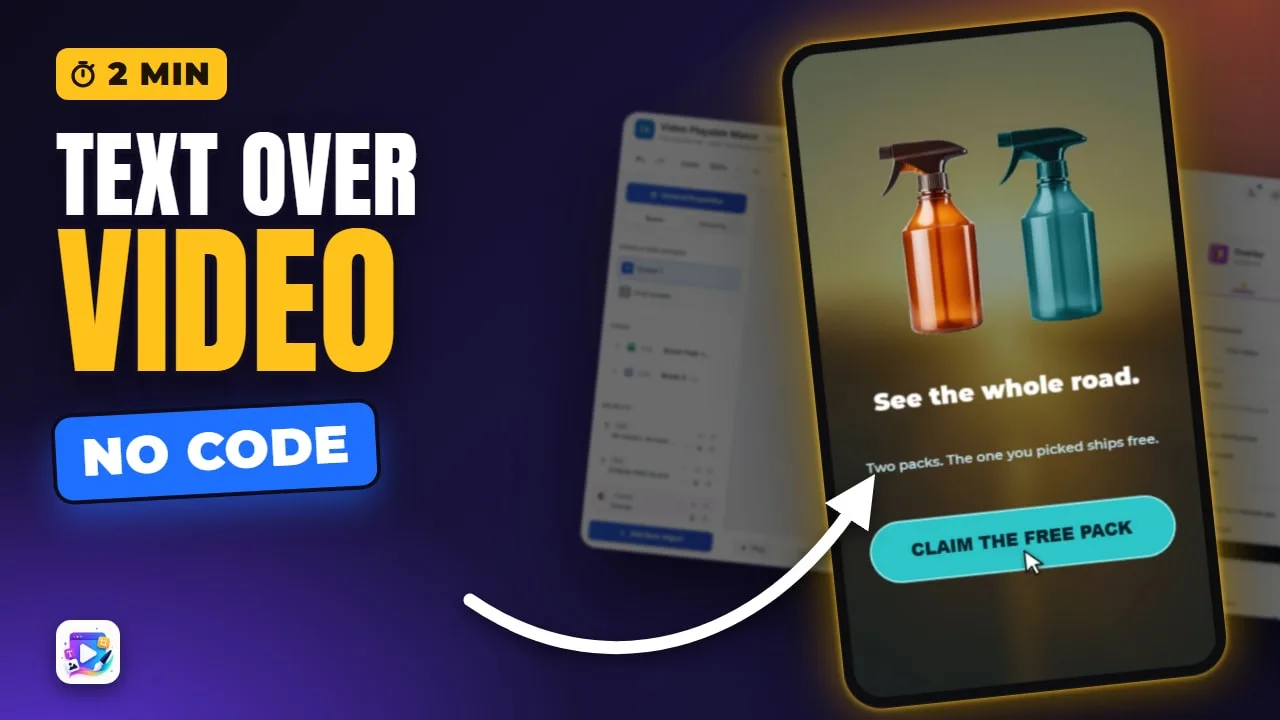
An overlay is a full-screen colour over the video in a video playable ad. Timed to the video and placed below the text, it dims the footage exactly when a message needs to be read. This tutorial adds one to the Glass Cleaner template, under its closing claim, from eleven seconds to the end.
Playable Ads Maker - build playable ads and end cards, export to 13 ad networks.
Transcript
The road dims, and the claim lands on it, clear as the glass. That's an overlay: a colour over the video, only when you need it.
In the next few minutes: adding one, its colour and strength, putting it under the text, and timing it to the video.
In the Video Playable Maker: Add New Object, Overlay. It covers the whole video - black, at half strength.
Read the full transcriptShow less
Overlay Color: a deep navy. Opacity sixty percent - dark enough for white text, light enough to still see the road.
A new object lands on top, so it's dimming the text too. Move it down, below the text, and the words stay bright.
Full video would tint the whole spot. Time frame limits it: from eleven seconds to the end, exactly when the claim appears.
Scrub to ten seconds: no tint. Twelve: the road dims, and the claim reads.
On its Animate tab, switch on Entry Fade, so it eases in instead of cutting. Exit Fade does the same at the end.
Three mistakes to avoid. One: too dark. Past seventy percent the product disappears - dim it, don't black it out.
Two: an overlay on top of the text. Move it below, or the words dim with everything else.
Three: a tint for the whole video. Time it to the moment it's needed, and let the footage breathe.
That's the overlay. See you in the next video!