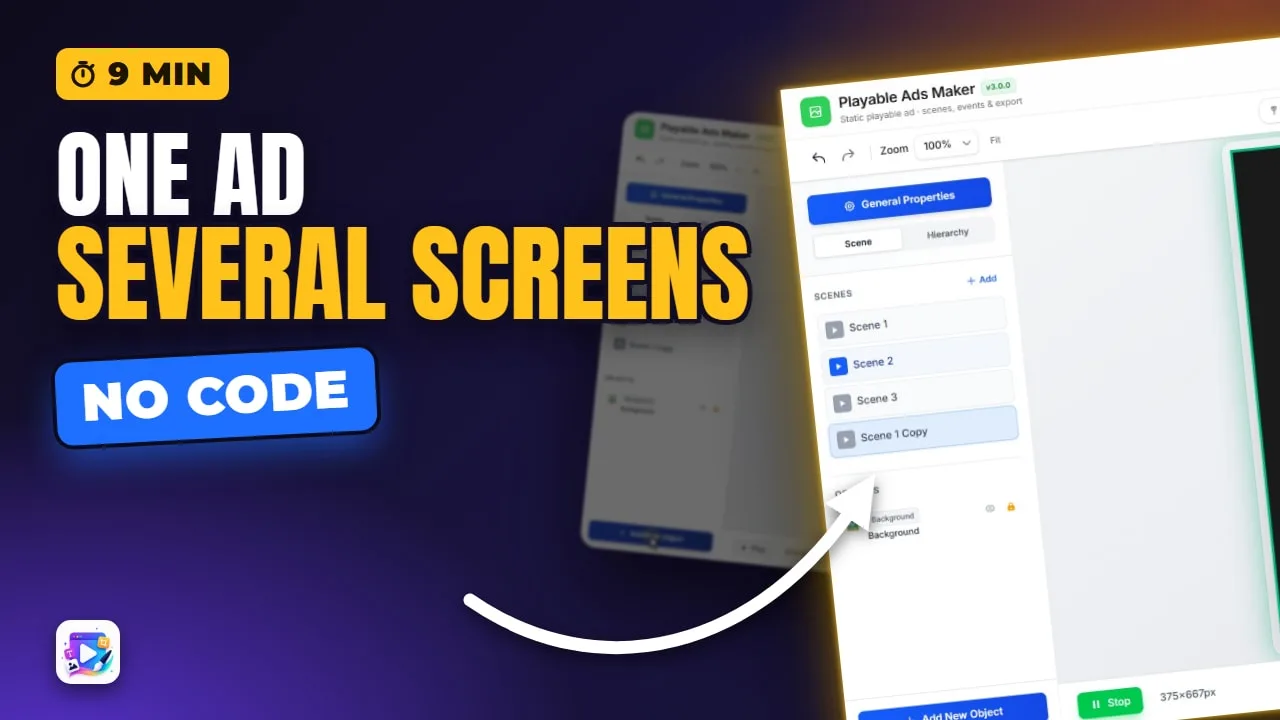
In this video
- What a scene is, and why almost every good playable is a short sequence
- Adding, naming and duplicating scenes
- Go to Scene — the whole navigation model
- Why entrances replay when you arrive, and what that means for timing
- Branching two ways: a scene per choice, or one scene and a variable
- Open End Card, and why it is a different action
- The CTA Button trap: navigates in the editor, redirects in the exported ad
About this video
A scene is a screen, and a playable with three scenes is one ad with three states. This tutorial builds a branching playable from scratch: adding and naming scenes, wiring buttons with Go to Scene, carrying a choice forward in a variable instead of duplicating screens, and ending on the End Card. It also covers the mistake the editor cannot show you — a mid-scene button typed as a CTA Button navigates perfectly in preview and sends the viewer to the store in the exported ad.
Playable Ads Maker — build playable ads and end cards, export to 13 ad networks.
Transcript
In this video you'll turn one screen into several - a playable that asks a question, branches on the answer, and ends on the card that gets the install.
A scene is a screen. Your ad starts on the first one in this list and stays there until something moves it - which means a playable with three scenes is not three ads, it is one ad with three states.
That matters more than it sounds. Almost every high-performing playable is a small sequence: show the problem, let me choose, show me what I chose. Each of those is a scene.
Read the full transcriptShow less
Add a scene. Name it properly - you will pick it from a dropdown later.
Duplicate is usually the faster start. A second scene that shares a background and a layout should be a copy you edit, not a screen you rebuild.
And each scene carries its own transition - the wipe or fade that plays on the way in. There is a whole video on those, so today I'll leave them at the default and spend the time on structure.
An event on a button, action: Go to Scene.
Pick the destination and you're done. That is the entire navigation model - there is no flow chart to maintain, because the buttons themselves are the map.
Watch what happens when we arrive. Every entrance animation on that scene plays, right then.
An entrance is timed from its SCENE starting, not from the ad loading.
Branching is the same action twice. Two buttons, two destinations - and now the viewer's choice decides which screen they see.
This is the shape almost every choice-driven ad uses. Pick your character, pick your plan, pick your room - each option is a button, and each button names a different scene.
But branching by scene alone gets expensive fast. Four choices across two questions is sixteen screens, and you do not want to build sixteen screens.
Set a variable, go to ONE scene, let the scene read it.
Variables survive the scene change - that is the point of them. What they chose on the first screen is still true on the third.
Open End Card - a different action from Go to Scene.
The end card is the screen that gets the install, so the product treats it as its own thing rather than as scene number four. There is a full video on designing one; what matters here is how you arrive at it.
On an End Card, EVERY button is already the click-through.
Which brings me to the mistake I most want you to avoid, because the editor cannot show it to you.
CTA Button is a BEHAVIOUR - leave the ad and open the store - not a style.
So if you use one as a mid-scene next button, here is what happens. In the editor it navigates perfectly, because there is no store to leave for. In the exported ad it runs your event and then sends the viewer to the store - and the rest of your playable is unreachable.
Mid-scene: a plain Button. CTA Button only when there is no End Card.
One more structural thing. The first scene in this list is where the ad opens, so reordering is not cosmetic - drag a different scene to the top and you have changed what the viewer sees first.
Check every scene in both orientations before you finish. Objects hold their own position per orientation, and it is easy to lay out scene one carefully and never look at scene three sideways.
Then walk the whole thing with Play - every branch, not just the one you built last. A dead button on the path you did not test is a dead ad for the people who take it.
Three to avoid. A CTA Button used mid-scene - that one is worth checking your project for right now.
A scene nothing navigates to. It costs file size, it ships, and no viewer will ever see it.
And building a screen per combination when a variable would have done it. If your scene list is growing faster than your ideas, that is the sign.
Try the smallest useful version: two scenes, one question, and an end card that names what they chose. That is a complete playable, and it is about ten minutes' work.
That is scenes, end to end. See you in the next video!