In this video
- Placing the 3D Product
- Importing a .glb, and the size check before it is used
- Materials read from the file
- Lighting: studio, soft, dramatic
- Drag to rotate, turntable, pinch and wheel zoom
- Finish rows that recolour one material each
- Your own buttons and a running price
- Three mistakes to avoid
About this video
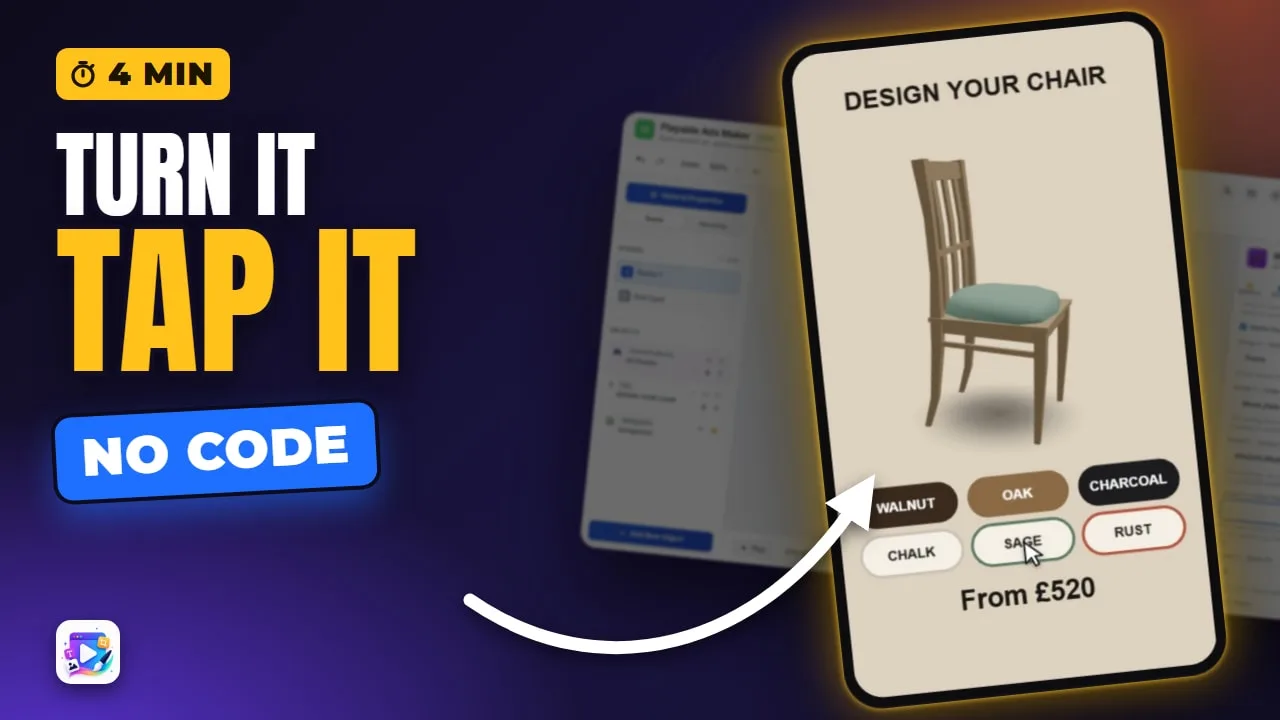
The 3D Product is an interactive module that shows a real 3D model in your playable ad: the viewer drags to turn it, pinches to zoom and recolours its parts. This tutorial imports a .glb, shows the budget check on a model that is too heavy, reads the chair's own material names out of the file, sets the lighting and motion, and builds a finish row that recolours only the wood - then plays it with buttons and a running price wired the same way as the Configurator. Placing a module in your own project is on the Agency plan.
Playable Ads Maker - build playable ads and end cards, export to 13 ad networks.
Transcript
Drag to turn the chair. Tap a wood, tap a fabric - it's a real 3D model, recoloured live, and the price keeps up.
That's the 3D product. In the next few minutes: importing your model, the size check, turning and zooming, the light, and finishes that know the model's own materials.
Add New Object, 3D Product - on the real site, placing a module is the Agency plan. It arrives empty: it needs a model.
Read the full transcriptShow less
Under Model, Choose Model, and upload a GLB file. This first one is too heavy, on purpose.
It's checked before it's used: triangles, materials, textures and file size against the budget for a web ad - with the networks that would reject it. Choose another file.
This chair is small. And the note has read the file itself: two materials, Wood Dark and Cushin. Remember those names.
Environment sets the light: studio, soft, or dramatic.
Spin is how it moves. Drag to rotate, a turntable until the first touch, and zoom - a pinch on a phone, the wheel on a computer - kept between your closest and furthest.
Finishes recolour one material each. Name the row Frame, and pick Wood Dark - the list is the model's own materials.
Then the colours, and their names in the same order: walnut, oak, charcoal. The wood changes, and the seat doesn't.
A second row does the same for the cushion. Pricing, your own buttons and the End Card work exactly as in the Configurator video - here they're already wired.
Press Play.
Drag to turn it, and scroll to zoom in and out. Oak, then Sage - and the price follows.
Three mistakes to avoid. One: compressed models. A GLB with Draco or meshopt compression can't be used - export it without.
Two: leaving the material on Every material. The colour then lands on everything, glass and tyres included.
Three: a heavy model. Keep it under about one megabyte - Meta's limit is two megabytes for the whole ad.
That's the 3D product. See you in the next video!